You want to know how last month went, so you open Google Ads, pick a date range, build the report, compare it to the month before, and export it. Then you do the same thing again next week. The obvious fix is to ask an assistant for the numbers instead, and most of the tools offering that want a monthly fee and a copy of your Google Ads access.
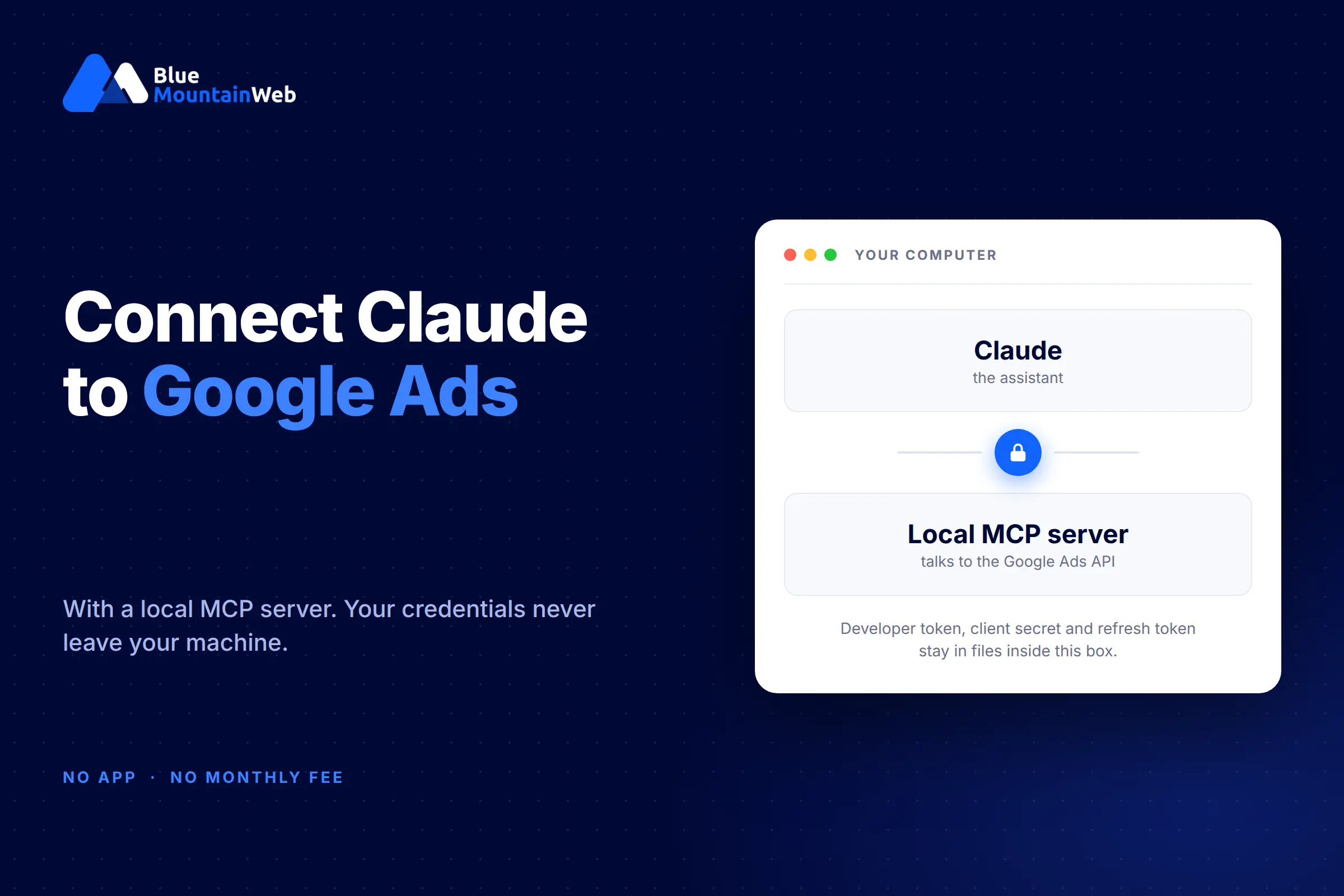
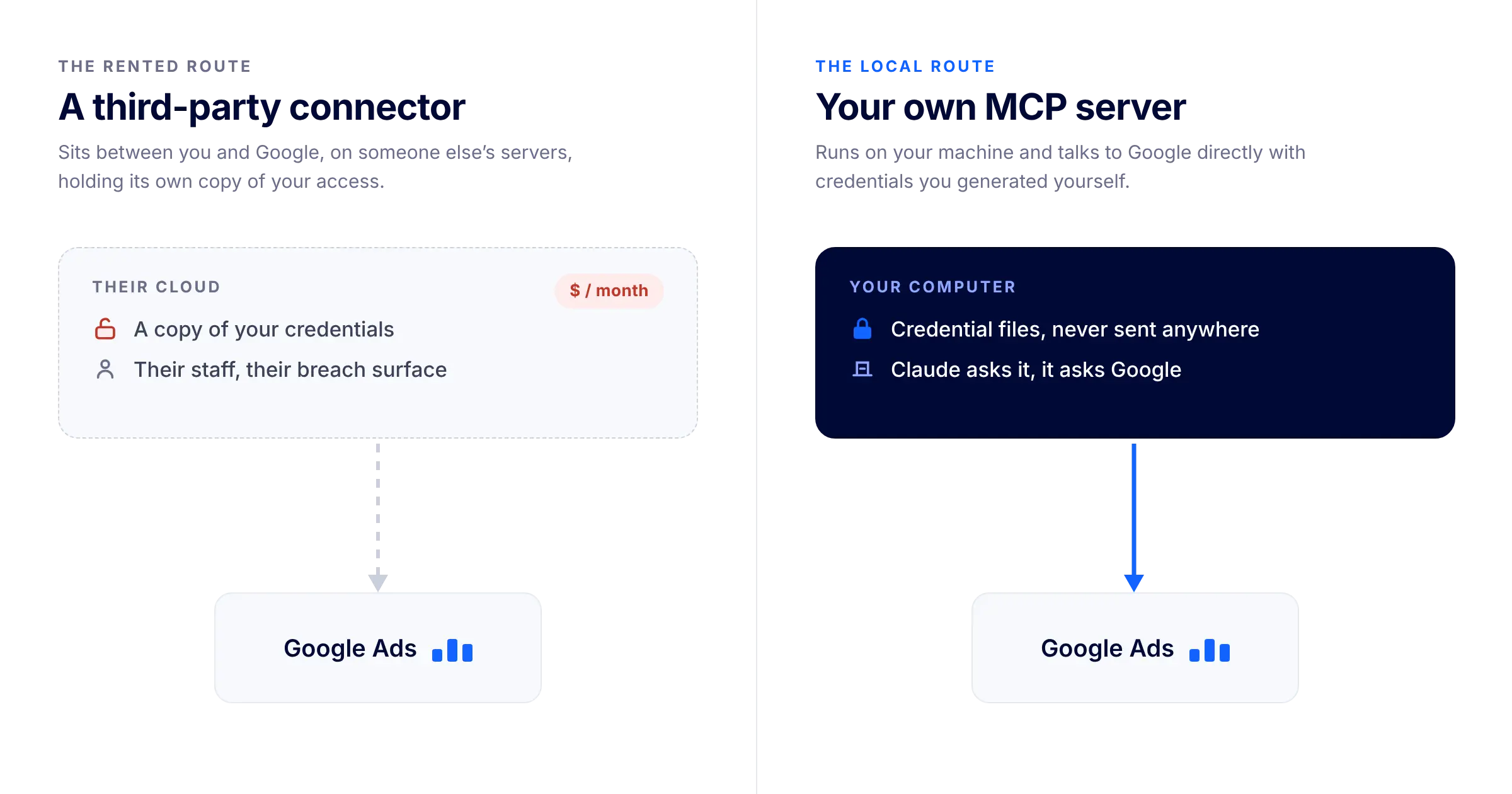
There is a route that costs nothing and keeps your keys on your own machine. A local MCP server, Model Context Protocol, runs on your computer and sits between Claude and the Google Ads API. Claude asks the server, the server asks Google with credentials you generated yourself, and the answer comes back in the chat. Nothing about your account is handed to a third party, because there is no third party.
What follows is every step to connect Claude to Google Ads this way, including the two mistakes that quietly kill the setup about a week after it starts working.
Watch it insteadWe recorded this whole setup as a walkthrough. Watch the video, or keep reading for the written version.
The short version
- The connection is local. Your developer token and your refresh token stay in files on your machine.
- You need four things: a Google Ads developer token, a Google Cloud project with the Google Ads API enabled, an OAuth client of type Desktop app, and a refresh token.
- On a normal @gmail.com account the consent screen only offers External. That is expected, not a mistake you made.
- With External, the project sits in Testing and your refresh token expires after 7 days unless you add your own account as a test user on that same screen.
- The OAuth client must be Desktop app. Pick “Web application” and the credentials step fails with
redirect_uri_mismatch. - Your credentials live in files the server reads. Your developer token, client ID, client secret and refresh token never get pasted into a chat, not even into Claude.
- Use the same Google account for Google Ads, Google Cloud and the sign-in at the end. Mixing two of your own accounts is the quiet way to make this fail.
- One terminal session, once. After that you open Claude and ask.
What Claude returns when it reads your Google Ads account
We asked, in plain language, how the account was doing. This came back:
- 30conversions
- $17.89cost per conversion
- $536.72total cost
- 66clicks
That run is from 9 September 2026, nine days into the month, so it is a partial month and not a full one.
Read the numbers for what they are. They are the output of one query against one live client account we manage, not a benchmark and not something this setup produces for you. What matters is the shape of the answer. The figures you would have assembled by hand arrive in a sentence, and you can keep asking in the same conversation instead of going back to build another report.
What you need before connecting Google Ads to Claude
The developer token this whole connection runs on does not live in a normal Google Ads account. It lives in a manager account, the MCC, which is the account type that sits above others so you can run several from one place. You can tell you are in one by the Accounts entry in the left sidebar; a standard account does not have it. If you do not have a manager account, create one first. It is the same registration flow as a normal account, and everything below assumes you are inside it.
Use the same Google account for all of it: the one that owns the manager account, the one you create the Cloud project with, and the one you sign in with at the last step. Mixing two of your own accounts is the most common way this fails, and it fails late, at the end, with an error that does not mention accounts.
Step 1: Get your Google Ads developer token
Sign in to your Google Ads manager account. Go to Admin, then API Center, and copy the developer token shown there.
If there is no token there to copy, you have to apply for one. The API Center offers you the application form; fill it in and wait for approval before you go on. There is no route around this step.
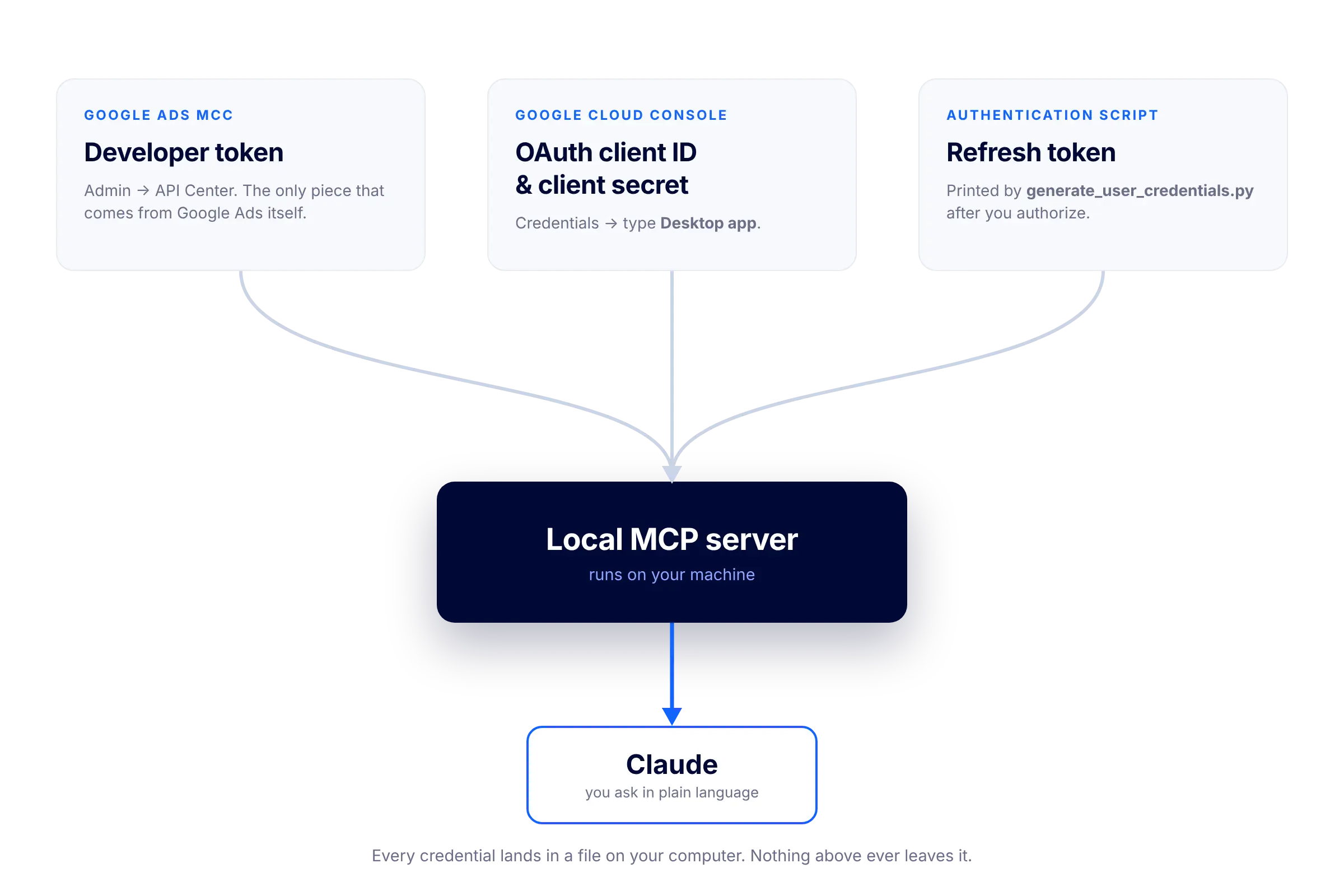
Save the token somewhere you can find it in ten minutes. This is the credential that identifies your application to the Google Ads API, and it is the only one of the four pieces that comes from Google Ads itself. The other three come from Google Cloud Console.
Step 2: Create a Google Cloud project for the Google Ads API
Open https://console.cloud.google.com/welcome? and create a new project. If your Google account belongs to an organization you can create it inside that organization; on a personal account there is no organization to pick and you can ignore the field. Name it something you will recognize later. We named ours “Claude Demo”.
Make sure the project selector at the top of the page shows the new project before you go on. Enabling an API in the wrong project is a confusing half hour.
Step 3: Enable the Google Ads API in Google Cloud
From the navigation menu, go to APIs & Services, search the library for Google Ads API, and click Enable.
Nothing visible happens beyond a confirmation. What you have done is give this project permission to talk to Google Ads, which is what makes the credentials in the next step mean anything.
Step 4: Set up the OAuth consent screen and Desktop app client
This is the step where most setups go wrong, in two different ways. Both are easy to avoid and both are hard to diagnose afterwards, so read this section before you click.
Why the OAuth consent screen only offers “External”
When you configure the consent screen, guides and screenshots will show you a choice between Internal and External. Internal only exists for projects that belong to a Google Workspace organization, which means a paid Google account on a domain you own. A normal @gmail.com address has no organization behind it, so the option is not there to pick. You will only see External.
That is not a permissions problem and there is nothing to fix. Select External and keep going.
Testing mode: why your refresh token expires after 7 days
With External selected, your project stays in Testing until you publish it. In Testing, the refresh token you are about to generate expires after 7 days. Everything works, you tell people it works, and a week later Claude stops being able to read your campaigns for no reason you can see.
The fix takes ten seconds and happens on that same screen: add your own Google account as a test user. Do it now, while you are looking at the field. The alternative is publishing the app later, which is more work than adding one email address.
The OAuth client must be Desktop app
Now create the credentials. In APIs & Services, under Credentials, create an OAuth client and choose the application type Desktop app.
Not “Web application”. A Desktop app client needs no redirect URI at all, which is exactly what you want for a script that runs locally. If you have already created a Web application client and would rather keep it, you have to add http://127.0.0.1 to its Authorized redirect URIs in Cloud Console, or Step 6 fails with redirect_uri_mismatch. Creating a Desktop app client is faster than debugging that.
If a step here is not matching what you see on screen, or you would rather have someone walk you through it live, we run guided setup calls.
Step 5: Install the Google Ads Python library
Open a terminal and run:
pip install google-ads --break-system-packagesThe --break-system-packages flag is there because many current systems ship a Python installation that refuses to install packages globally without it. If your Python setup does not need the flag, the command works without it.
Step 6: Generate the refresh token for the Google Ads API
Three small pieces, in order.
Download your client secret file. Back in Google Cloud Console, under Credentials, click the download icon next to the OAuth client you created in Step 4. You get a JSON file with a name like client_secret_XXXX.apps.googleusercontent.com.json. Put it in the folder you are going to run the script from.
Download the authentication script. It is an official example from Google’s Python client library, generate_user_credentials.py, at github.com/googleads/google-ads-python/blob/main/examples/authentication/generate_user_credentials.py. Save it into the same folder.
Run it, passing the JSON file as a parameter. The script needs to know which client it is authenticating as, so the path is not optional:
python generate_user_credentials.py --client_secrets_path=client_secret_XXXX.apps.googleusercontent.com.jsonThe script prints a URL. Paste it into your browser and sign in with a Google account that has access to the MCC you want to read. If that account is not the one you added as a test user in Step 4, go back and add it. Once you authorize, the terminal prints your refresh token.
Treat that token like a password, because that is what it is. It is the piece that lets the server read your account without asking you to log in again, and the reason this whole route is private is that it never leaves your machine.
Step 7: Register the Google Ads MCP server in Claude
You now have every credential the server needs. Put them where your server file expects to find them, then tell Claude that the server exists.
Two things about that credential file are worth deciding on purpose rather than by accident. Keep it outside the folder Claude works in, in an .env or .yaml sitting next to your server, in a directory Claude has no reason to open. And scope the server to read-only reporting. Nothing in this guide needs permission to change your account, and a connection that cannot pause a campaign or move a bid is a connection that cannot do damage while you are looking somewhere else. For the same reason, do not hand Claude access to your terminal. You ran the one command yourself; keep it that way.
There are two ways to register the server, depending on which Claude you use.
Connect the MCP server in Claude Desktop
The route for most people, and it needs no further commands.
- Open Claude Desktop, go to Settings, then the Developer tab, and click Edit Config.
- A JSON file opens. Add this, using the real full path to your server file:
{ "mcpServers": { "google-ads": { "command": "python3", "args": ["/full/path/to/server.py"] } } } - Save the file and restart Claude Desktop. The Google Ads MCP shows up in the tool selector.
If the config file already has an mcpServers block with other servers in it, add google-ads as another entry inside that block rather than pasting a second block. Two top level mcpServers keys is invalid JSON and Claude will ignore the file.
Connect the MCP server in Claude Code
One command:
claude mcp add google-ads -- python3 /full/path/to/server.pyTest the connection: ask Claude about your campaigns
First, check the server is actually running, not just listed. In Claude Desktop that is the same Settings, Developer tab: google-ads should appear there and show as running. If it does not, that is a real error rather than a display quirk, and it is worth fixing before you blame the query. Expect to restart Claude more than once along the way, because the config file is only re-read on a restart.
Once it is running, ask a real question. “How did my campaigns do last month compared to the month before” is enough. You do not need to name metrics or write anything that looks like a query.
The first answer is also your test. If it comes back with numbers that match what Google Ads shows you, the chain works end to end: developer token, project, API, client, refresh token, server, Claude.
If an error comes back instead of numbers, paste it to Claude with any token or secret stripped out and work through it from there.
What connecting Claude to Google Ads does not do
- It cannot touch your campaigns. Scoped read-only, the way Step 7 recommends, the connection reads and nothing else. Claude cannot create a campaign, write an ad, move a budget or pause anything for you.
- It does not make the analysis right. You can write a skill that carries your own analysis methodology, then have Claude pull the data and work through it the way you would. It still needs the context only you have: what changed, what was paused on purpose, what the account is actually for. Without that, you get a fast answer to the wrong question.
- It does not watch the account for you. Nothing runs on a schedule and nothing alerts you. It answers when you ask, and only then.
- It does not reach past what you authorized. The connection sees the accounts under the manager account you signed in with. Nothing outside it.
You have connected Claude to Google Ads
Everything above happens once. From here on, reading your Google Ads account means opening Claude and typing a question, with no terminal, no export, no report builder, and no monthly bill for the privilege of asking.
If you would rather not do it alone, that is a reasonable call. We run a guided setup call: you share your screen, we take you through these steps on your own machine, and your credentials stay where they belong, which is with you. It is the same automation work you can see in our recent projects.
Want us to run your Google Ads for you?