WordPress doesn’t talk to Zapier on its own. There is an official plugin that is supposed to fix that, and its review page is largely a list of people explaining that it stopped working for them.
There is a way around it that needs nothing installed. Your site already publishes an RSS feed, and Zapier reads RSS natively. Ten minutes, zero plugins, and one security detail that most guides skip entirely.
This is the setup we use to push new posts to a Facebook page. The same trigger feeds anything else Zapier connects to.
The short version
- WordPress has no native Zapier connection. The official plugin is the usual answer, and it is not a reliable one.
- Your feed at
yoursite.com/feedalready contains every new post, in a format Zapier understands. - The RSS trigger needs no plugin, no API key and no access to your admin.
- If the feed needs credentials, use a dedicated Subscriber account, never your admin login.
- RSS only fires on new feed content. Form submissions, orders and status changes need a different approach.
On this page
Why not the official plugin
The obvious route is the Zapier plugin from the WordPress repository. We don’t recommend it, and neither do most of the people who have left it a review. The complaints repeat: it errors out, it stops firing, it needs reinstalling.

There is a second reason to skip it that has nothing to do with reliability. The plugin works by giving Zapier authenticated access to your site’s REST API. That is a live door into WordPress, kept open permanently, for a job that in most cases only needs to know when you published something. A public feed does the same work and opens nothing.
Every plugin you install is code you now depend on, maintained by someone else, updated on their schedule. That is a real cost. We’ve written about the software we actually keep on a WordPress site, and the list is short on purpose. Solving this one without adding to it is the better trade.
What you need
- A WordPress site with its feed publicly reachable, which is the default on a standard install.
- A Zapier account. The free plan handles this.
- The account you want to post to, ready to connect. In this walkthrough that’s a Facebook business page.
Connect WordPress to Zapier with your RSS feed
-
Find your feed URL. In most installs it’s your domain followed by
/feed, for examplehttps://yoursite.com/feed. Open it in a browser. If you get a wall of XML listing your posts, that’s the one.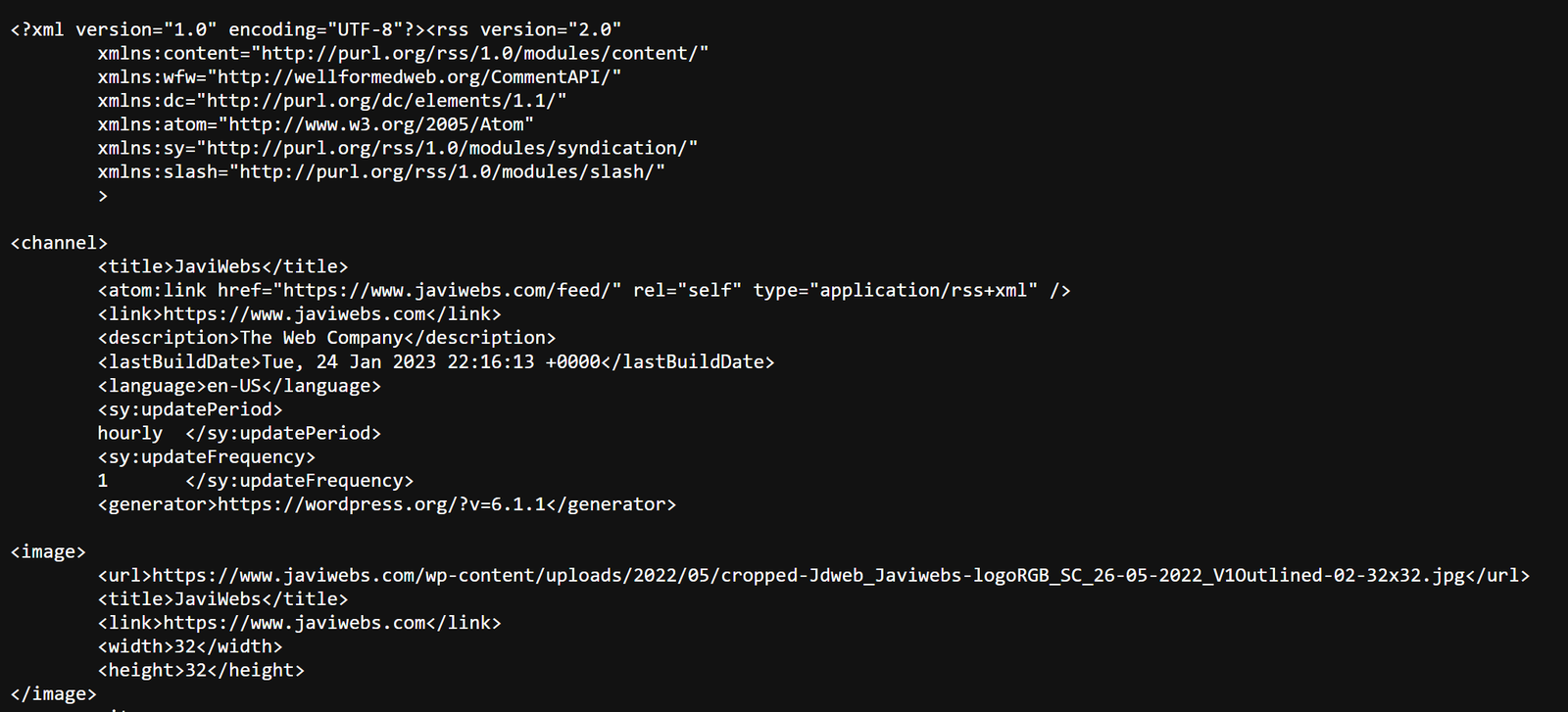
If that URL gives you nothing, the feed is somewhere else. View the page source and search for
rss. The feed link is declared in the head of every WordPress page.
-
Create a new Zap and pick RSS as the trigger. Search for RSS by Zapier and choose New Item in Feed as the event. That fires once for every new item the feed publishes, which on a WordPress blog means every new post.

-
Paste your feed URL into the trigger. Leave the username and password fields empty unless your feed is behind authentication. Most aren’t. If yours is, read the next section before you type anything into those boxes.

-
Test the trigger. Zapier pulls your most recent posts and shows you the fields it found: title, link, description, publication date. Those field names are what you map in the next step, so it’s worth looking at what actually came back rather than assuming.

-
Add the action. This is what happens when a new post appears. For a Facebook page, that’s Facebook Pages, Create Page Post. Connect the account and pick the page.

Then map the fields. The message is the text that goes out with every post, so write something that works for any article you might publish. The post’s own title and link do the specific work. Pull the link straight from the RSS trigger’s output.

-
Test the action, then turn the Zap on. Zapier sends a real post to your page. Check that it actually landed and that the link resolves.

The user account detail most guides skip
If your feed is protected and the trigger does need credentials, the instinct is to paste in your own admin login. Don’t.
Create a separate WordPress user for the automation instead. Users, Add New, and set the role to Subscriber, the lowest role there is, with read permissions and nothing else.
Two things this buys you. If you ever need to cut the automation off, you delete that user and nothing else in your site is affected. And if those credentials leak, and sitting in a third-party tool they’re outside your control, whoever has them can read. That’s all. No editing, no plugins, no users, no admin.
Where RSS stops being enough
Be clear about what this setup does: it reacts to new items in a feed. That covers publishing, and it covers it well. It does not cover most of what a business actually wants automated.
| What you want | Does RSS handle it? |
|---|---|
| New post goes out to social | Yes. This is exactly what it’s for. |
| Contact form submission into your CRM | No. Form entries never touch the feed. |
| New order, booking or payment | No. Needs a webhook from the plugin handling it. |
| A post edited, unpublished or changed | No. The feed only announces new items. |
| Instant reaction, no delay | No. RSS is polled on a schedule, not pushed. |
Everything in the “no” column is doable. It just needs the event pushed out of WordPress rather than read out of a feed. That’s a webhook, and for most of them a form plugin or an ecommerce plugin already sends one; the work is receiving it and deciding what happens next.
This is worth settling before a site gets built rather than after. It’s one of the questions we tell people to ask when they’re choosing who builds their website: what is this thing supposed to do beyond existing, and who is wiring that up.
If the automation you need is on the wrong side of that table, that’s the kind of work we do.
If you still want the plugin route
The steps barely change. Install and activate the Zapier plugin, connect your WordPress account inside Zapier, and choose WordPress instead of RSS as your trigger. From there the action side is identical to step 5 above.
What you get for the extra dependency is triggers the feed can’t offer: new user, new comment, a post updated rather than only created. If you specifically need one of those and don’t want to set up a webhook, it’s a reason to accept the trade. If you’re only pushing new posts out, it isn’t.
That’s it
Zero plugins, one feed, and an automation that keeps running because there’s almost nothing in it to break. Publish a real post and watch it go out before you consider it finished. Testing proves the wiring, a live post proves the timing.